How to Sync Obsidian Safely with OneDrive or Google Drive
A practical guide to syncing an Obsidian vault with OneDrive or Google Drive instead of Obsidian Sync — setup steps, the official limitations, and how to avoid conflicts and data loss.
In brief
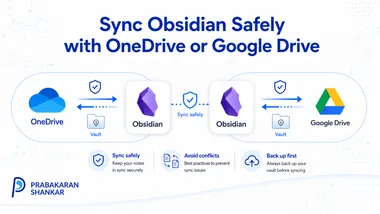
Obsidian is free, and OneDrive or Google Drive can keep a vault in sync across desktops without paying for Obsidian Sync — Obsidian’s own documentation lists this as a valid pattern. It comes with real limitations, though: no official iOS support, no true merge on conflicts, and cloud placeholder files that can look like missing notes if you skip the setup steps below.
An Obsidian vault is a plain folder of Markdown files. That is what makes it possible to sync a vault with almost any tool that can sync a folder — including cloud storage you may already pay for, like OneDrive or Google Drive. This post covers how to set that up correctly, and where it falls short of Obsidian Sync.
Why sync outside of Obsidian Sync
Obsidian’s core app is free for personal and commercial use, with no feature gate. Obsidian Sync — cross-device sync with end-to-end encryption and version history — is a separate paid product starting at $4/month billed annually. If you already pay for OneDrive or Google Drive storage for other reasons, routing your vault through it costs nothing extra.
Obsidian’s own help documentation acknowledges this and lists OneDrive, Google Drive, iCloud Drive and Syncthing as options for syncing a vault between desktops without Obsidian Sync.
What is and is not supported
- OneDrive (Windows, macOS): works, but the vault folder must be set to always keep files on the device. Support on Android is limited, and it is not officially supported on iOS.
- Google Drive (Windows, macOS, Android): works via Google Drive for desktop, with files set to available offline. Not officially supported on iOS.
- iCloud Drive (macOS, iOS, iPadOS): the closest to first-class mobile support, since it is Apple’s own sync layer — but iCloud Drive on Windows has a known history of file duplication or corruption issues.
- Syncthing: peer-to-peer, no cloud storage in the loop; the official Android app is unmaintained, so mobile relies on a community fork.
None of these are Obsidian Sync. Obsidian’s support team builds and tests Obsidian Sync directly; problems with a third-party sync tool are yours to debug against that tool’s own support channels.
Rule 1: one sync method per vault, never two
Do not double-sync a vault
Running Obsidian Sync and a cloud folder sync (OneDrive, Google Drive, iCloud) on the same vault at the same time is a common cause of data loss and file corruption. Pick one sync mechanism per vault and stick to it.
If you want to compare methods, do it with a copy of the vault, not the live one.
Rule 2: force full local downloads before you open the vault
Cloud sync clients save disk space by keeping some files as online-only placeholders until you open them. Obsidian needs full, immediate local access to every file to index and link your vault correctly — a placeholder file can look like a missing note, an empty file, or a broken link.
- OneDrive: right-click the vault folder → Always keep on this device. Do this on every machine that opens the vault, not just one.
- Google Drive: in Google Drive for desktop, set the vault folder to Available offline, or use “Mirror files” mode instead of “Stream files” so everything stays local.
- iCloud Drive: turn off Optimize Mac Storage for the vault, or keep the folder outside iCloud’s optimization scope entirely.
Setting up OneDrive sync
- Install the OneDrive desktop client and finish its normal setup.
- Either move your existing vault folder into your OneDrive folder, or create a new vault there directly.
- Right-click the vault folder in File Explorer or Finder and choose Always keep on this device.
- Open the vault from Obsidian’s Open folder as vault option, pointing at the OneDrive-synced path.
- Repeat steps 3–4 on every other device before you start editing from it.
Setting up Google Drive sync
- Install Google Drive for desktop (not just the browser app — the desktop client is what keeps a real local folder in sync).
- Choose Mirror files so the vault folder exists in full locally, rather than Stream files, which relies on on-demand placeholders.
- Move or create your vault inside the mirrored Drive folder.
- Open it in Obsidian as a normal local vault.
- On mobile, install the Google Drive Android app and confirm the vault folder is marked available offline before opening it in Obsidian’s Android app.
How conflicts actually resolve here
Obsidian Sync understands vault structure and gives you an explicit conflict-resolution setting — merge automatically, or keep both versions for manual review. OneDrive and Google Drive do not understand Markdown or your vault at all; they only diff files. Edit the same note on two devices before sync catches up, and you will get a second file — typically named something like “note-name (1).md” or a dated conflicted copy — instead of a clean merge.
The .obsidian configuration folder (themes, plugin settings, workspace layout) syncs along with your notes too. It changes constantly as you use the app, which means it is a frequent, low-stakes source of the same kind of conflicted-copy noise. It rarely costs you real data, but it is worth recognizing so you do not mistake UI-state churn for lost notes.
Practical rules that keep it safe
- Let sync finish before you switch devices — closing Obsidian and waiting a few seconds is usually enough on a fast connection, longer on a slow one.
- Treat any “conflicted copy” filename as something to resolve immediately, not something to leave for later.
- Keep an independent backup outside the sync folder. Convenience sync propagates mistakes to every device just as fast as it propagates good edits; it is not a substitute for a real backup.
- If you keep large attachments or raw instrument data in the vault, consider keeping them outside it and linking to a stable path instead — the same advice applies whether you use Obsidian Sync or a cloud folder.
What you give up compared to Obsidian Sync
- Officially supported mobile access, especially on iOS.
- End-to-end encryption. Obsidian Sync offers it as an option; OneDrive and Google Drive can technically access file contents on their servers.
- Version history scoped to your vault specifically — though OneDrive and Google Drive both keep their own file version history you can fall back on if you need to recover an earlier version of a single file.
- A single, tested workflow. With a cloud folder, correct configuration is your responsibility, not the app’s.
None of that makes cloud folder sync unsafe by default — it just means the safety comes from following the setup above, not from the tool doing it for you.